 Look Straight
 1.5 guide
OSC
Look Straight supports OSC (Open Sound Control) for communication with other apps, devices, and control systems on your local network.
OSC is a flexible, lightweight protocol widely used in live production, broadcast, interactive installations, and automation workflows.
With OSC enabled, Look Straight can:
- Send OSC messages to other systems when actions trigger.
- Receive OSC messages to control Look Straight remotely — start/stop detection, toggle actions, switch profiles, and more.
Enabling OSC
- Go to Look Straight home.
- Tap the More menu.
- Choose Settings.
- Tap OSC Server.
- Turn on Enable OSC.
- Specify the OSC Port (default 49999).
- The port must be within the range 1024–65535.
- Use the listed IP Addresses to determine which interface your device is using.
- Optionally enable Allow Global Action Control via OSC to let other devices toggle or execute actions from any action set, not just the one that's currently active.
- Optionally enable or disable Show OSC Server Status Indicator to see a visual indicator in the bottom toolbar that the OSC server is running.
Once enabled, Look Straight starts an OSC server that listens for incoming messages and can send OSC messages from any configured OSC Message action.
Start/Stop the OSC Server
To start or stop the OSC server, follow these steps:
- Go to Look Straight home.
- Tap the More menu.
- Tap Start OSC Server to start the server.
- Tap Stop OSC Server to stop the server.
Messages
OSC messages that Look Straight responds to are listed below:
| Command | Description |
|---|---|
/lookstraight/detection/start |
Start gaze detection |
/lookstraight/detection/stop |
Stop gaze detection |
/lookstraight/detection/pause |
Pause detection |
/lookstraight/detection/toggle |
Toggle detection on or off |
/lookstraight/camera/{name}/set |
Switch to the named camera. Replace spaces with hyphen characters |
/lookstraight/camera/cycle |
Cycle through available cameras |
/lookstraight/info/show |
Show info |
/lookstraight/info/hide |
Hide info |
/lookstraight/info/toggle |
Toggle info |
/lookstraight/overlay/show |
Show gaze overlay |
/lookstraight/overlay/hide |
Hide gaze overlay |
/lookstraight/overlay/toggle |
Toggle overlay visibility |
/lookstraight/lightbox/show |
Show the light box |
/lookstraight/lightbox/hide |
Hide the light box |
/lookstraight/lightbox/toggle |
Toggle the light box |
/lookstraight/realign |
Realign the neutral face position |
/lookstraight/actionset/{name}/set |
Set the active action set |
/lookstraight/actionset/clear |
Clear the active action set |
/lookstraight/action/{name}/enable |
Enable an action |
/lookstraight/action/{name}/disable |
Disable an action |
/lookstraight/action/{name}/toggle |
Toggle an action’s enabled state |
/lookstraight/action/{name}/start |
Perform the start action |
/lookstraight/action/{name}/stop |
Perform the stop action |
/lookstraight/user/{name}/set |
Switch to a user profile by name or OSC identifier |
OSC Identifier
The OSC Identifier is a short, unique label that lets Look Straight reference Actions, Action Sets, and User Profiles through OSC (Open Sound Control) messages.
It allows external systems — like Bitfocus Companion, QLab, or TouchOSC — to target specific items in Look Straight without ambiguity.
When sending or receiving OSC messages, Look Straight uses identifiers to map incoming commands (e.g., /lookstraight/actionset/studio/set) or to send feedback about specific actions or profiles.
Every Action, Action Set, and User Profile in Look Straight is automatically assigned a default OSC Identifier — a randomly generated UUID (Universally Unique Identifier).
This ensures that even newly created items can be uniquely addressed over OSC, even if they have identical names.
You can replace this identifier with a custom, more readable label of your choice.
Custom identifiers are recommended if you plan to use OSC frequently or want meaningful names (e.g. studio_set, camera_switch, or adam_profile).
Identifier Rules
- Must be unique within its category (Actions, Action Sets, or Profiles).
- May contain letters, numbers, underscores, or dashes.
- Is case-insensitive when matching incoming OSC messages.
- Should avoid spaces — use underscores or dashes instead (my_action, studio_profile, etc.).
- Action sets and user profiles can use the name as the identifier, but you must replace all spaces with dashes and lowercase the string. If you have multiple action sets or user profiles with the same name, generate a unique OSC identifier for them to prevent conflicts.
OSC Message Action
The OSC Message action lets Look Straight send OSC packets to any IP address and port whenever a trigger condition is met.
This allows direct control of lighting consoles, media servers, broadcast controllers, or applications like Bitfocus Companion, TouchDesigner, QLab, or OBS.
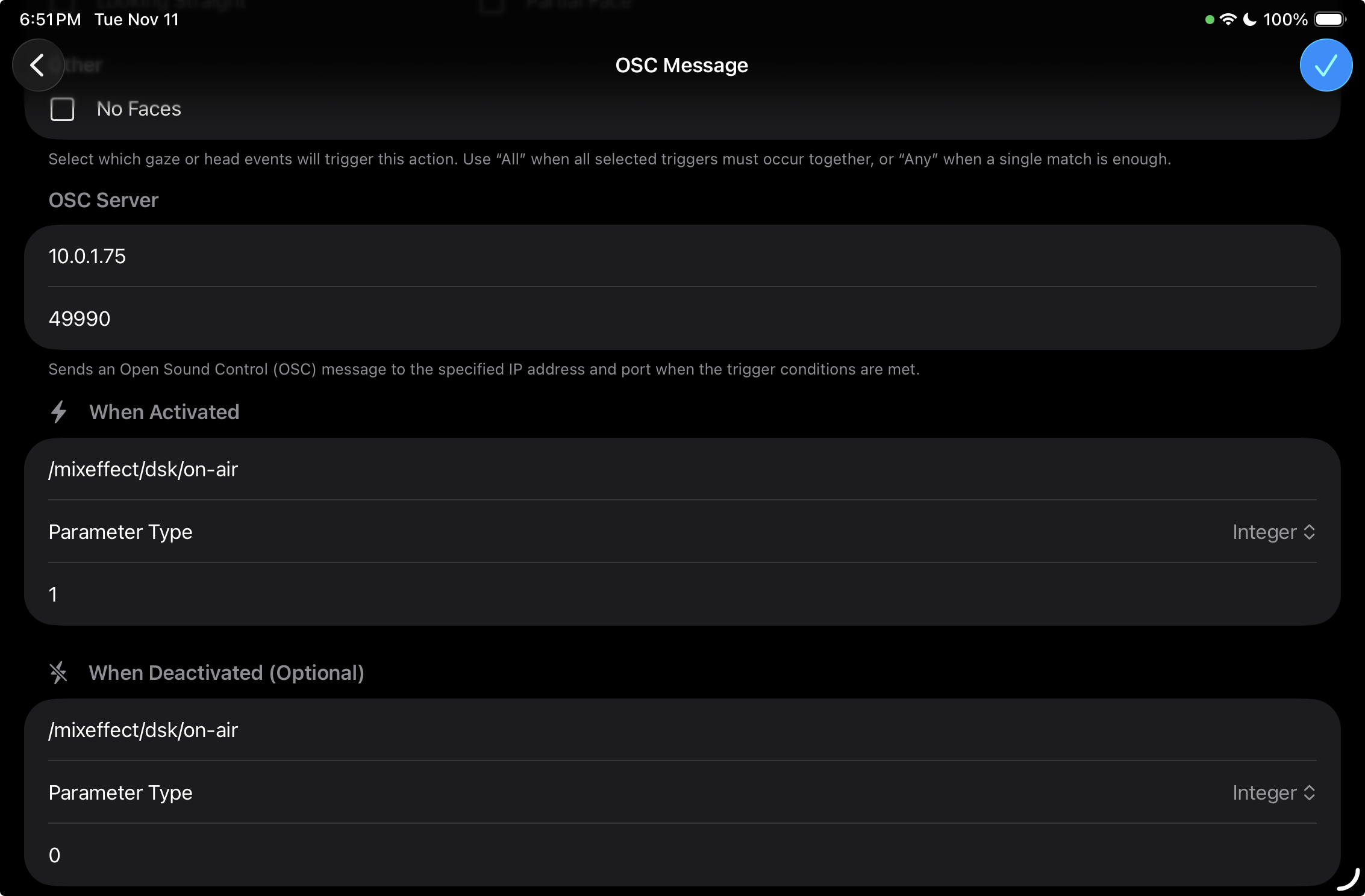
More information about the OSC Message action can be found here.