 Look Straight
 1.5 guide
Onboarding
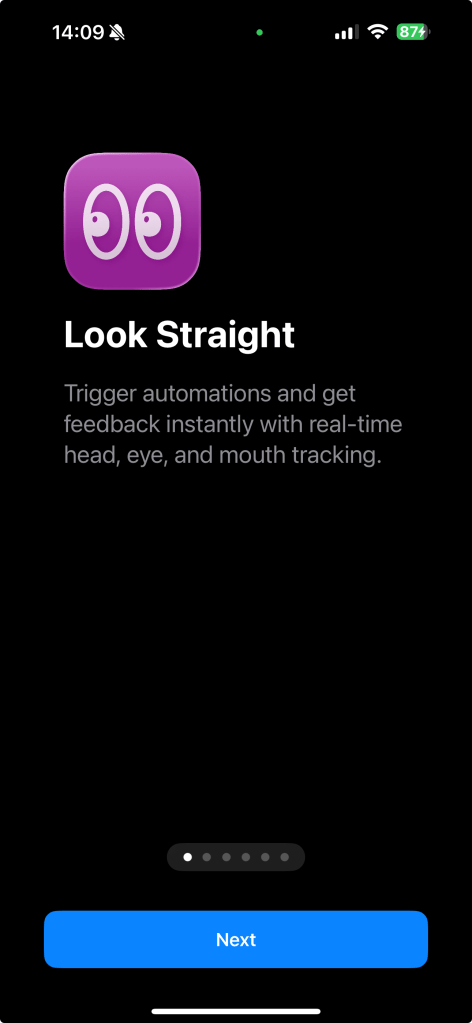
The first time you open Look Straight, the welcome screens walk you through the app and ask for camera access. You can install the default action set to try a visual alert and sound right away.
Camera access
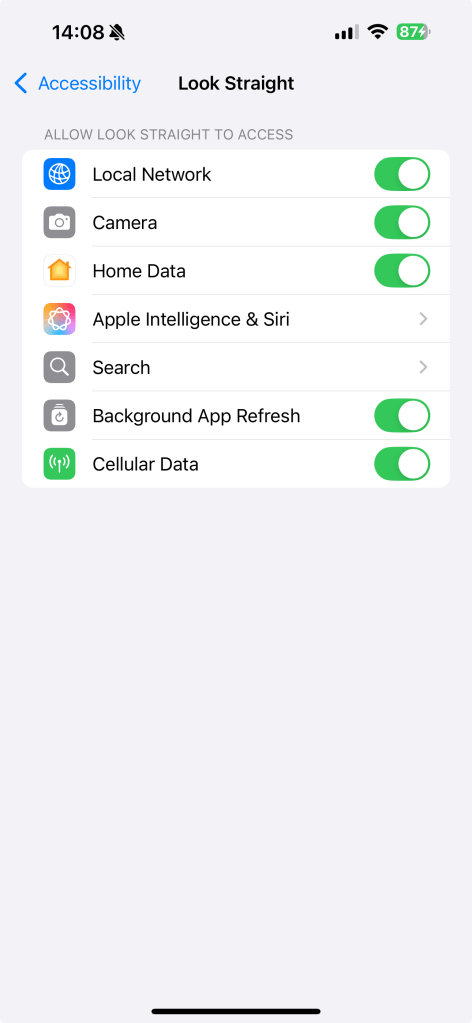
Allow camera access when prompted. Look Straight uses the camera to detect movements and run rules. If you declined the prompt, you can turn access on in system settings.
On iPhone and iPad
- Open Settings and tap Apps.
- Tap Look Straight.
- Turn on Camera.
See the iPhone settings screen
On Mac
- Choose Apple menu → System Settings.
- Click Privacy & Security, then Camera.
- Turn on access for Look Straight.
Try the default set
Start detection and make a head turn or side glance. The default set gives visual and audio feedback for selected movements. You can change those rules or create your own from the Action menu.